


TEAM SAP Vista
Typically replies in a few hours

Customer Care Team
Hi there
How can i help you today?
How can i help you today?

Start Whatsapp Chat

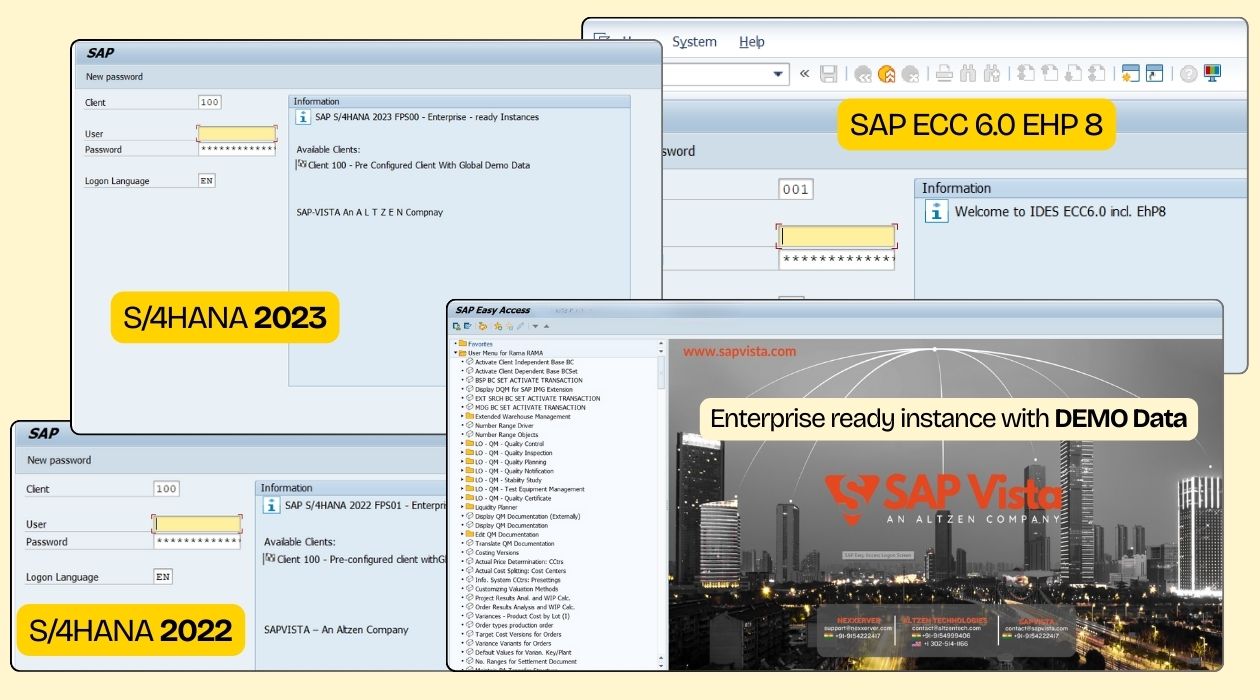
How to get SAP server access for practice starts with choosing the right online SAP training system. Many learners and teams need a ready to use SAP system to practice real transactions, test configurations and build confidence. An online SAP system gives controlled access without installing software locally. It supports structured training, self practice and project testing in a stable environment.
Getting SAP server access from SAPVista is a simple and guided process. You can request an online SAP system for practice, training or project work without setting up local infrastructure. SAPVista offers a FREE trial so you can review the system, validate access and confirm it fits your learning or business needs before extending usage. Once approved, access is provisioned quickly with clear timelines and support.
Start by contacting SAPVista through the Contact Us page or via the WhatsApp channel. Share a brief note on what you are looking to practice or test. This helps the team guide you correctly from the start.
NOTE : FREE trial option is not available for special modules, SAP BTP or other SAP cloud based solutions.
Provide key details such as number of users, required tenure and purpose of access.
If you are a corporate team, training institute or enterprise and need a dedicated live system, request an SAP Dedicated Server. This setup supports training programs, proof of concept work, demonstrations, custom development and specific integrations. Supported integrations include SAP BTP and AI based implementations such as LLMs or agent based scenarios.
Ask for a FREE trial to review the system setup. Use this period to explore transactions, configurations and performance. If the system meets your needs, request the team to extend the subscription for continued access.
You receive login credentials within the agreed timeline. Start using the SAP system online through a browser or SAP GUI and continue your practice, testing or project work without local installation.
Once you understand the process, the next step is simply to reach out and share your requirement. A short discussion helps align the right system, access level and timeline. From there, the team takes care of setup so you can focus on practice, testing or delivery without delays.
.jpg)

SAP Lead Consultant and Director of Business Strategy at Altzen Technologies Private Limited.

16192 Coastal Highway,
Lewes, DE 19958
Call us : +1 302-514-1166

Call us : +91-9154999407

.webp)


.webp)


